
Quote Sticky Note Widget for iPhone

Product scope: Be My Widget has a Sticky Note widget, not an automatically rotating Quotes widget. Enter and change the quote manually, then style that note with a supported theme.

Why Add Quotes to Your Home Screen?

Micro‑motivation works. A quotes widget surfaces affirmations, gratitude prompts, or inspiring lines whenever you glance at your iPhone.

Choose fonts, colors, and background styles that match your aesthetic—minimal, vibrant, monochrome, or cozy.

Write your own line in a Be My Widget Sticky Note. Change it manually whenever you want a new prompt; automatic quote libraries and scheduled rotation are not built in.
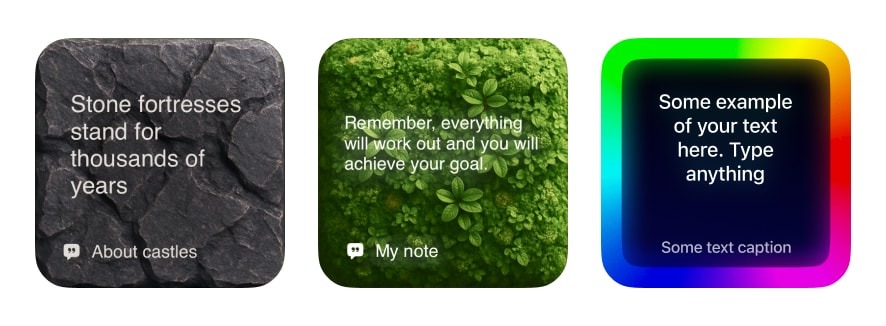
Quotes widget with aesthetic theme on iPhone

Ideas for Quote Widgets

Pick a focus for each page or stack.

  • Morning: Affirmations and gratitude prompts
  • Work: Focus reminders and deep‑work cues
  • Fitness: Motivation and discipline quotes
  • Learning: Language phrases or flashcards
  • Evening: Reflection prompts and journaling cues
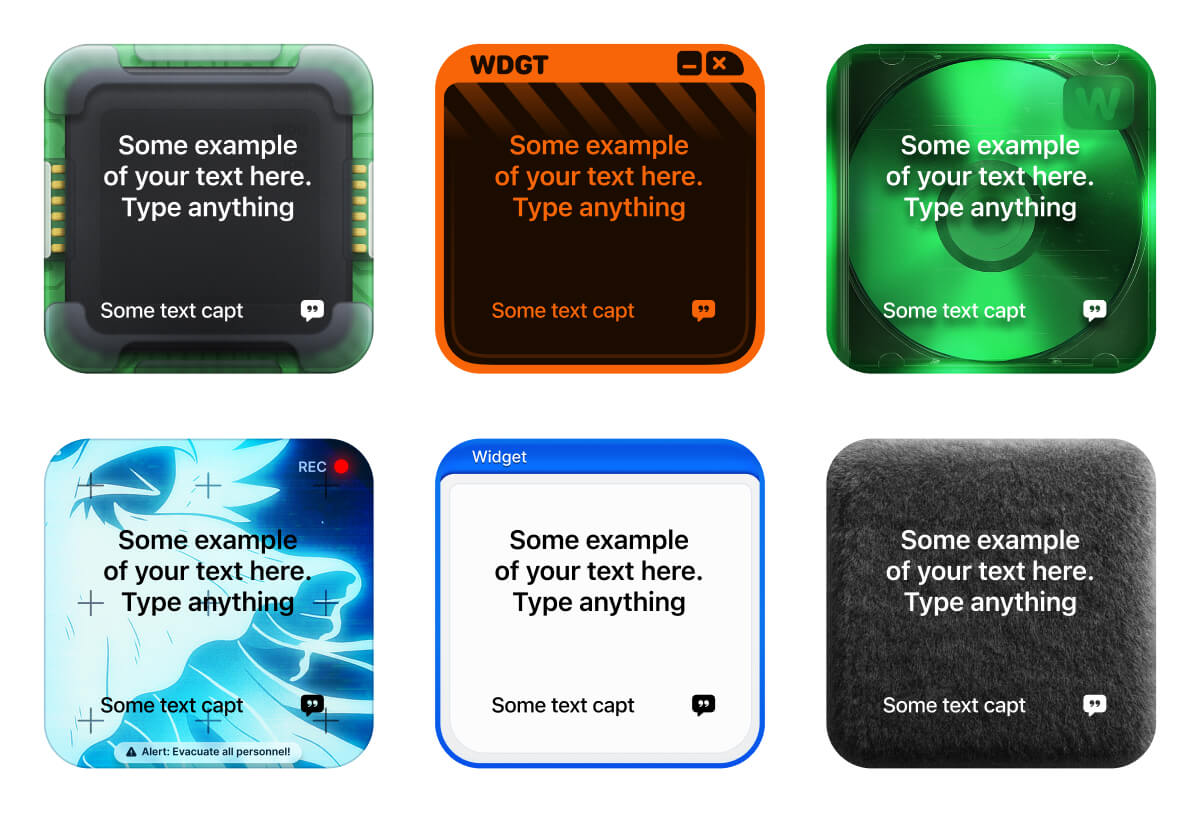
Minimal quotes widget with serif typography

Start with the One-Glance Question

A useful Manual Quote Card setup begins with one question: Which single line is worth seeing repeatedly? If the card cannot answer that question in a second or two, simplify the setup or move detailed information back to its source app.

Enter a quote manually in Sticky Note and style it with a supported theme. Be My Widget does not include an automatic quote library, daily feed, scheduled rotation, author database, or quote notifications. This separation makes the Home Screen more trustworthy: Be My Widget handles the confirmed visual layer, while changing or sensitive records stay with the service responsible for them.

A Deliberate Setup Workflow

Build the card around the decision it should support, not around empty space on the page. A reliable setup order is:

  1. 1. Choose a short line you have permission to use.
  2. 2. Type it into Sticky Note.
  3. 3. Include attribution when appropriate.
  4. 4. Select a restrained theme.
  5. 5. Replace the text manually when it no longer feels useful.

After placement, lock the phone, return to the Home Screen, and test the design at a normal viewing distance. The main value should be obvious before the theme or background attracts attention.

Four Practical Ways to Use This Setup

  • Morning page: Use one intention rather than a rotating feed.
  • Study page: Show a concise principle beside the external timer.
  • Creative page: Pair a line with a selected image.
  • Team value: Display a short internal principle without exposing private information.

The pattern is consistent: give each card one job and let the authoritative app own live, regulated, private, or interactive data. That keeps the layout useful even when the wallpaper or theme changes.

Frequently Asked Questions

Can I use my own quotes?

You can enter your own text in a Sticky Note, but Be My Widget does not rotate quotes on a schedule.

Do themes support custom fonts?

Yes—pick from a curated font set to match your home screen vibe.
Design Your Daily Motivation

Turn your Home Screen into a positive nudge with a manually updated Sticky Note.

Be My Widget includes Sticky Notes, Countdown widgets, and 200+ themes; it does not include an automatic Quotes feed.