Soft Sage Productivity Theme
The feeling behind the look
Good widget design begins with a moment that currently causes friction. Soft sage can make a productivity screen feel grounded without looking clinical or overly minimal. A strong sage green iPhone theme begins with that feeling, then translates it into color, type, spacing, and image treatment.
For students, remote workers, and people building a calmer planning routine, the goal is a gentle work theme that separates priorities through spacing rather than aggressive color—a direction that remains useful after the trend passes.
Build a palette with a clear hierarchy
Build the layout from the most time-sensitive detail outward. Use soft sage, warm cream, charcoal, and muted clay as the palette rule. Pick one dominant neutral, one recognizable accent, and one readable text color before adding gradients or texture.
Use sage as the recurring accent over cream and charcoal information surfaces. This connects different card layouts so the result feels curated rather than copied.
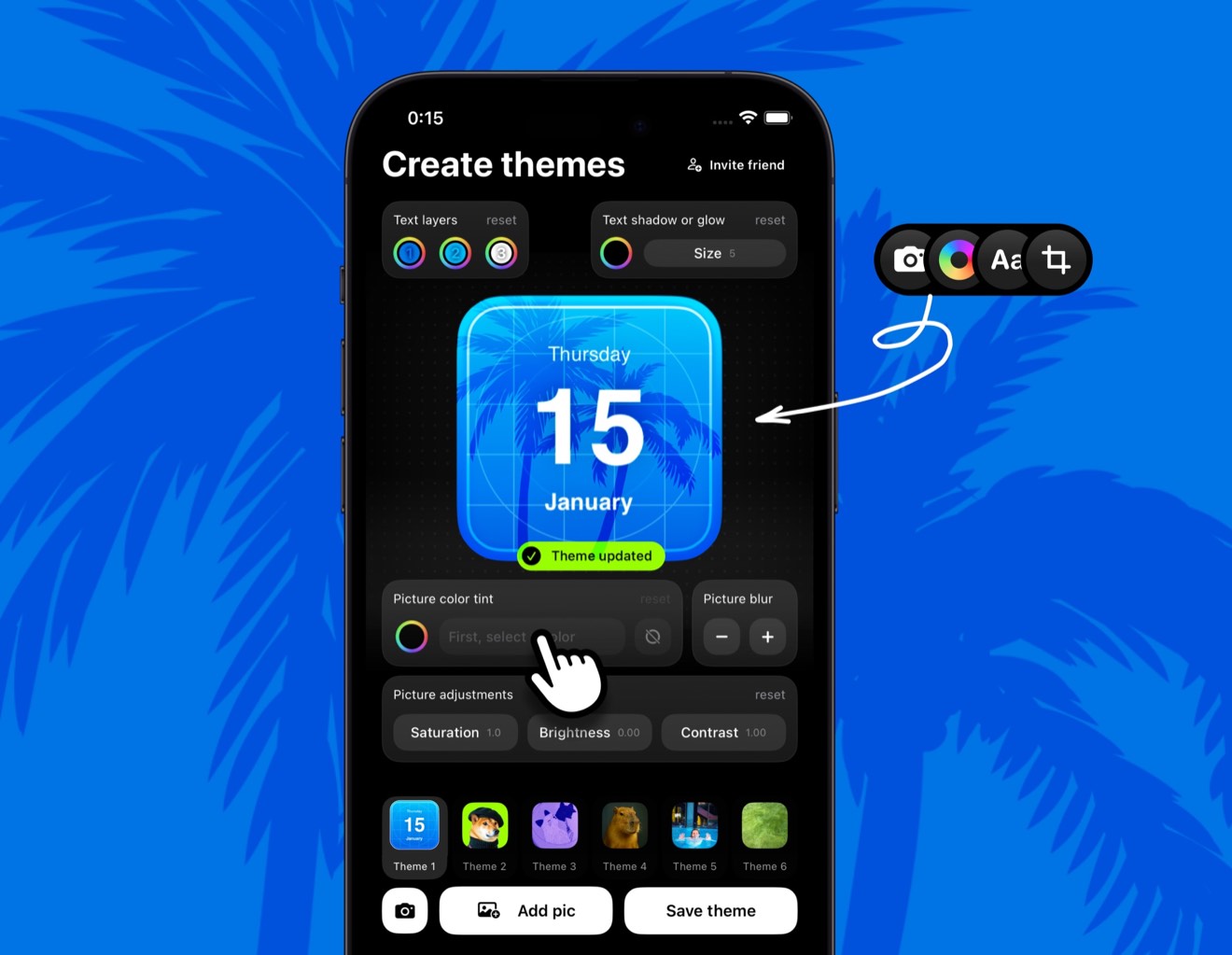
This broad theme view establishes soft sage, warm cream, charcoal, and muted clay before individual cards are tuned.
Create the theme in four deliberate steps
- Choose the mood. Start from this design brief: Soft sage can make a productivity screen feel grounded without looking clinical or overly minimal. Select a wallpaper that supports a gentle work theme that separates priorities through spacing rather than aggressive color.
- Select a base theme. Browse Be My Widget's 200+ themes for a foundation suited to students, remote workers, and people building a calmer planning routine. Favor soft sage, warm cream, charcoal, and muted clay.
- Personalize it. Follow this direction: Use sage as the recurring accent over cream and charcoal information surfaces. Then adjust tint, contrast, blur, and crop until the information remains easy to read.
- Repeat one cue. Carry the palette through two real tests: Style a weekly calendar. Create a calm sticky-note area.
Contrast test: Pair a deadline counter with breathing room. Consistency test: Use a nature photo as a small reset cue. Good iphone widget themes preserve each card's job.
Ways to use this visual direction
- Fast check: Style a weekly calendar.
- Planning moment: Create a calm sticky-note area.
- Shared context: Pair a deadline counter with breathing room.
- Personal cue: Use a nature photo as a small reset cue.
Design check: Take a screenshot after this use case: Style a weekly calendar. Identify what attracts attention first. If the palette—soft sage, warm cream, charcoal, and muted clay—overwhelms the useful value, simplify the background or strengthen the type contrast.
Pair atmosphere with readable widgets
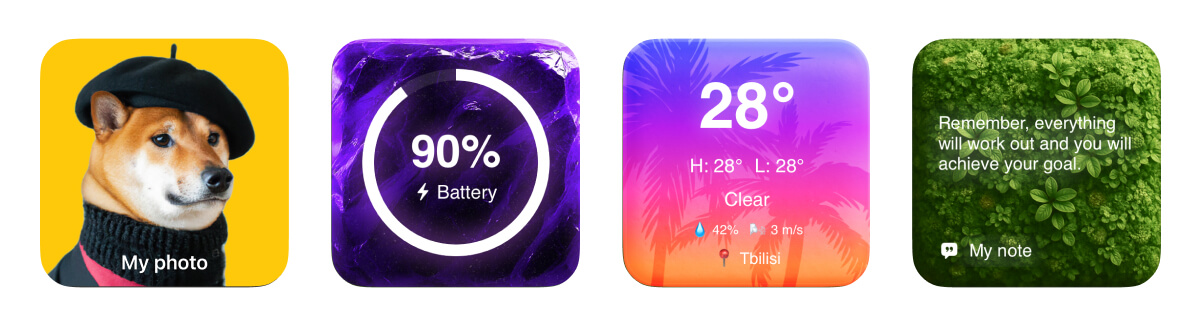
The detailed example turns a gentle work theme that separates priorities through spacing rather than aggressive color into a readable widget system.
Expressive test: Style a weekly calendar. Calm test: Create a calm sticky-note area. This helps students, remote workers, and people building a calmer planning routine create an intentional custom home screen iphone layout.
Test the screen by day and night. First, pair a deadline counter with breathing room. Then, use a nature photo as a small reset cue. Small changes to soft sage, warm cream, charcoal, and muted clay and font weight improve hierarchy.
Frequently Asked Questions
Will this theme work with a busy wallpaper?
Yes, if you add enough contrast. Use blur, a darker overlay, or a quieter crop behind text-heavy widgets and test the result in both bright and dim conditions.
Do all widgets need the same color?
No. Repeating one accent, one neutral, and one typography style usually feels more intentional than forcing every card to look identical.
Can I make a personal version?
Yes. Start with a Be My Widget theme, then use Theme Editor to add your own image, tune color and brightness, and save a version that fits your wallpaper.
Build a Home Screen That Helps
Be My Widget brings 28+ widgets, 200+ themes, and Theme Editor tools into one flexible visual toolkit. Start with the useful job described in this guide, then make the result feel personal.
Keep the layout focused, verify changing information at its source, and let every glance move the day forward.